Network
Connect a router
Link a MikroTik router so ISPilot can switch customers on and off, keep it in sync and watch its health.
You don't need new hardware or a public IP. ISPilot prepares the router for you with a setup script.
Before you start
- A MikroTik router with internet access.
- Access to the router's terminal, for example through WinBox.
Add the router
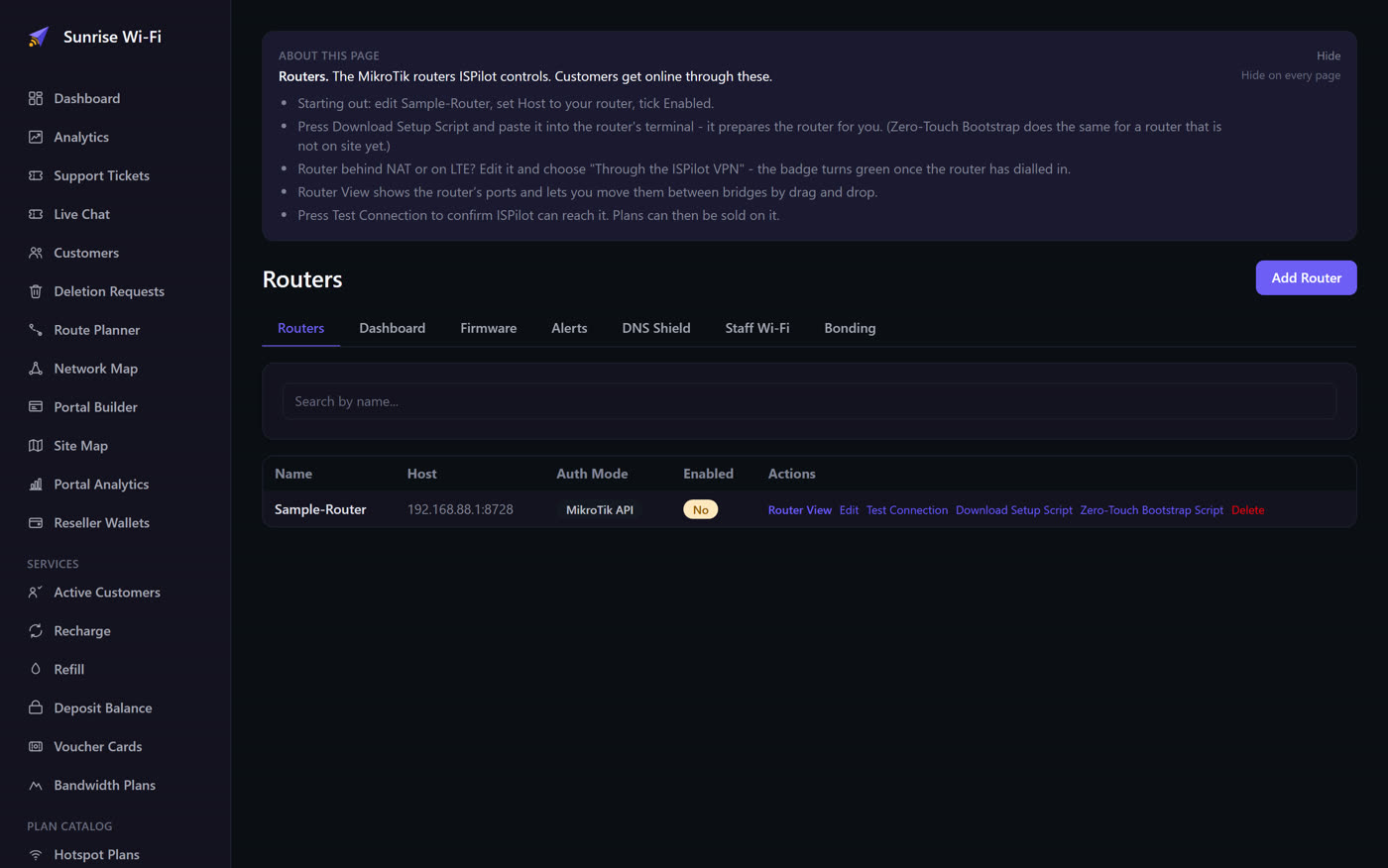
- Open Network > Routers. Edit Sample-Router, or add a new router.
- Give it a name you'll recognise.
- Choose how ISPilot reaches it:
- Directly: the router has a public IP. Enter it as the Host.
- Through the ISPilot VPN: the router is behind NAT or CGNAT, or on LTE or Starlink.
- Enter a new API Username and API Password just for ISPilot. The setup script creates this login on the router.
- Leave Auth Mode on MikroTik API unless you run RADIUS.
- Tick Enabled and save.
Run the setup script
- On the Routers page, select Download Setup Script.
- Enter the bridge or port your Wi-Fi access points use, usually
bridge, then select Download script. Every device on it will need to log in, including your own computer. WinBox can still reach the router by its MAC address. - Open the file, copy all of it, then paste it into the router's terminal.
- On a VPN router, wait for the VPN badge to turn green. This means the router has dialled in.
- Select Test Connection. Once it passes, you can sell plans on this router.
Check the Host and API login before you run a script again. Running it repeatedly won't fix a wrong address or password.
If the router isn't on site yet, use Zero-Touch Bootstrap Script, which does the same job.
Move ports between bridges
Router View shows the router's ports and which bridge each belongs to, such as Hotspot, PPPoE or LAN.
- Drag a port onto a bridge. On a phone, tap the port and then the bridge.
- Select Apply. Nothing changes on the router until you do.
Customers on a moved port may lose connection for a moment. The internet (WAN) port is locked, so you can't cut the router off by accident.
Read router health
The Dashboard tab on the Routers page shows every router. ISPilot checks each one every 2 minutes.
| Colour | Meaning |
|---|---|
| Green | Answering checks |
| Amber | A check was missed |
| Red | Not answering. The reason shows on its card. |
Available (24 h) is the share of checks answered in the last day. Below 95% means the router or its internet line keeps dropping.
Keep routers in sync
ISPilot does this by itself. It checks plans, paid users, vouchers and password changes every 10 minutes, as soon as a router comes back online, and within 2 minutes of any change. Select Sync now to do it straight away.