Network
Login page
Design the page people see when they join your Wi-Fi, and see how they use it.
Two kinds of portal
| Portal | What it is | How to use it |
|---|---|---|
| Cloud portal | The page hosted by ISPilot | Set your name, colours and ads, then select Publish. |
| Router portal | The same page, for a MikroTik router | Pick the router and download the package. |
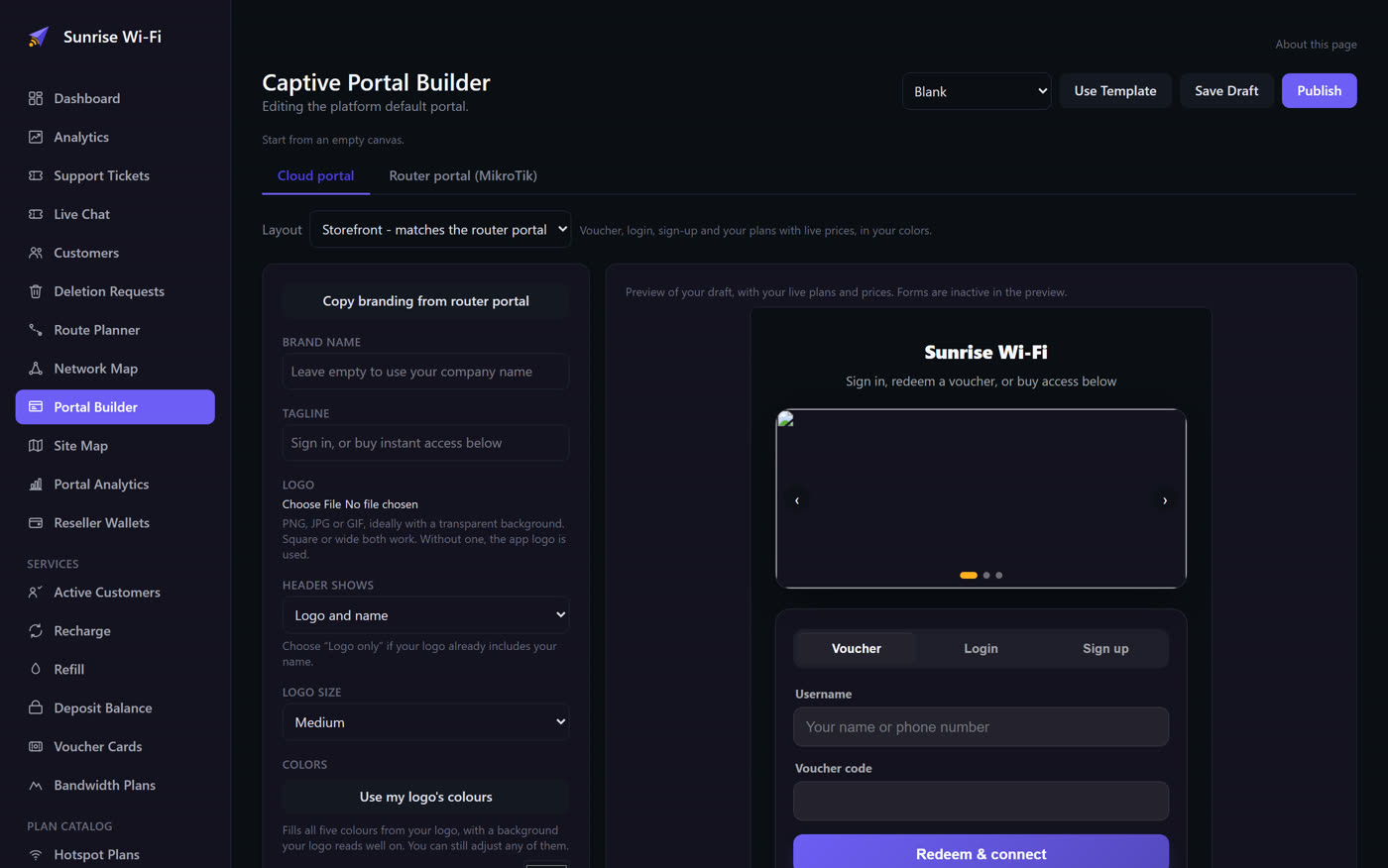
Design your page
- Open Portal Builder. In a hotel account this is Wi-Fi > Login page.
- Keep the Storefront layout. It shows vouchers, login, sign-up and your plans with live prices.
- Add your Brand name, Tagline and logo, then set your colours. Your app logo is used unless you upload another.
- Select Save & refresh preview and check the preview.
- Select Publish.
Guests only ever see a published design. Edits to a draft have no effect until you publish.
Want full control? Under Layout, choose Custom canvas to drag items onto the page, then move, resize or remove them.
Social login
To let hotspot guests sign in with Facebook or Google, open Settings > Social Login. You need an app ID and secret from the provider, and a plan to put those guests on.
Portal Analytics
Portal Analytics shows how many people logged in through your portal, and how.